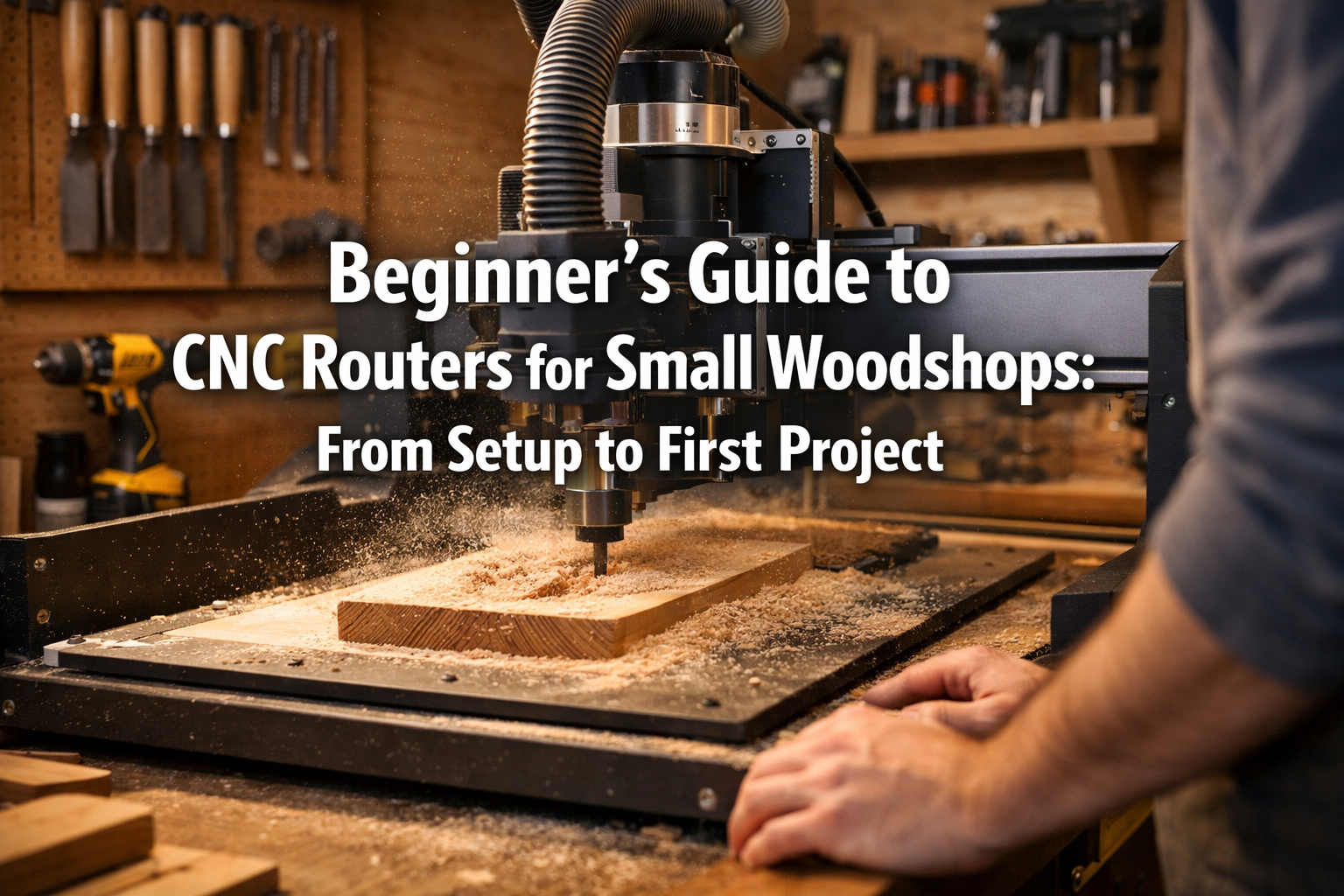

The hum of a router, the scent of fresh-cut wood, and the satisfaction of a perfectly executed cut – these are the hallmarks of a traditional woodshop. But what if you could achieve unprecedented precision, repeatable designs, and intricate carvings with less effort? Welcome to the world of CNC (Computer Numerical Control) routing. For small woodshops in 2026, integrating a CNC router can seem daunting, but it’s an accessible leap that can transform your craft. This comprehensive beginner’s guide to CNC routers for small woodshops will demystify the process, taking you from initial setup to completing your very first exciting project.
A CNC router is essentially a robot that moves a cutting tool along a series of programmed coordinates. Instead of pushing wood through a saw or guiding a handheld router, you design your project on a computer, and the machine executes your vision with incredible accuracy. This opens up a world of possibilities, from custom signage and intricate joinery to jigs and templates that streamline your traditional woodworking.

Key Takeaways
- Accessibility: CNC routers are increasingly affordable and user-friendly for small woodshops, offering powerful capabilities without a steep learning curve.
- Workflow: The process involves three main stages: Design (CAD), Toolpath Generation (CAM), and Execution (Machine Control).
- Safety First: Understanding and implementing safety protocols, including dust collection and proper workholding, is paramount.
- Practical Projects: Begin with simple projects like custom signs, coasters, or basic jigs to build confidence and proficiency.
- Community & Resources: Leverage online communities and tutorials for ongoing learning and support.
1. Choosing Your First CNC Router and Essential Setup

Getting started with a CNC router requires understanding your needs and selecting the right machine, followed by a careful setup process. For small woodshops, compact desktop or benchtop models are often the best starting point, balancing capability with space and budget constraints.
What to Look for in a Beginner CNC Router
When selecting your first CNC, consider these factors:
- Size (Work Area): How large are the pieces you plan to route? Common beginner sizes range from 12″x12″ to 24″x24″ or larger.
- Rigidity: A sturdier machine (often meaning heavier components) leads to more precise cuts and better surface finishes.
- Spindle/Router: Some machines come with integrated spindles, while others use a standard trim router. Spindles are typically quieter and more powerful.
- Software Compatibility: Ensure the machine works with user-friendly CAD/CAM software.
- Support & Community: A strong user community and good customer support can be invaluable for beginners.
| Feature | Beginner-Friendly Recommendation | Why it Matters |
|---|---|---|
| Work Area | 12″x12″ to 24″x24″ | Sufficient for small projects, signs, and jigs without taking up too much space. |
| Build Quality | Aluminum frame or rigid gantry | Reduces vibration, leading to cleaner, more accurate cuts. |
| Router/Spindle | Trim router compatible or entry-level spindle (300W-1kW) | Good balance of power for common woodworking materials and cost. |
| Control Software | Easel, Carbide Create, Universal Gcode Sender (UGS) | Intuitive interfaces are crucial for learning the ropes. |
| Price Point | $500 – $2,500 | Wide range, but many capable machines exist in this bracket. |
Unboxing and Assembly
Most beginner CNC routers arrive as kits or partially assembled units. The assembly process is typically straightforward and well-documented.
- Read the Manual: This is non-negotiable. Familiarize yourself with every component and step.
- Organize Parts: Lay out all components and verify against the parts list.
- Mechanical Assembly: Follow instructions carefully, ensuring all bolts are tightened correctly and gantry moves smoothly.
- Wiring: Connect motors, limit switches, and the spindle according to the diagram. Double-check all connections.
Software Installation and Configuration
The “brains” of your CNC operation consists of CAD (Computer-Aided Design), CAM (Computer-Aided Manufacturing), and machine control software.
- CAD Software: Used to design your project.
- Simple options: Easel (web-based), Carbide Create (free with Carbide 3D machines), Inkscape (free vector editor).
- Advanced options: Fusion 360 (free for hobbyists), VCarve Desktop.
- CAM Software: Takes your design and creates toolpaths (the instructions for the CNC). Often integrated into CAD software (e.g., Easel, Carbide Create, Fusion 360).
- Machine Control Software: Sends the toolpath instructions (G-code) to the CNC.
- Common choices: Universal Gcode Sender (UGS), Candle, GRBL Control.
Install the necessary drivers and software. Configure your machine’s dimensions and settings within the control software as per your router’s specifications.
Essential Accessories for Your Small Woodshop CNC
Before you even make your first cut, you’ll need a few crucial items:
- Workholding: Clamps, double-sided tape, or a spoil board with threaded inserts. Secure work is critical.
- Bits/End Mills: Start with a basic set of straight bits, V-bits, and possibly a ball nose.
- Dust Collection: A shop vacuum with a dust shoe is essential for safety and machine longevity.
- Safety Glasses and Hearing Protection: Always.
- Calipers/Ruler: For precise measurements.
- Computer: A dedicated computer is often best to avoid interruptions.
2. Understanding CNC Workflow: From Design to G-Code

The magic of CNC routing lies in its digital workflow. This section will guide you through the fundamental steps from conceptualizing your project to generating the instructions your machine understands. This is a crucial step in your beginner’s guide to CNC routers for small woodshops.
The CAD Phase: Designing Your Project
CAD software is where your ideas come to life digitally. You’ll draw shapes, add text, and arrange elements.
- Vector vs. Raster: CNC routers primarily work with vector files (lines, curves, shapes defined mathematically). Raster images (photos) are generally not directly cut but can be used as templates.
- Basic Shapes: Learn to create squares, circles, and polygons.
- Text: Add and manipulate text for signs or labels.
- Scaling and Positioning: Understand how to size your design to match your material and position it accurately within the work area.
Pro Tip: Start with simple, geometric designs. Overly complex designs can be frustrating for a first project.
The CAM Phase: Generating Toolpaths
Once your design is complete, CAM software translates it into a series of toolpaths – the specific movements your router will make.
Key CAM Concepts:
- Tool Selection: Choose the right bit for the job. Different bits have different cutting characteristics (e.g., straight bits for pockets, V-bits for engraving, ball nose for 3D carvings).
- Cut Depth: How deep will each pass be? Multiple shallow passes (depth of cut) are often better than one deep pass to prevent bit breakage and improve cut quality.
- Feeds and Speeds:
- Feed Rate: How fast the router moves horizontally across the material (inches/minute or mm/minute).
- Spindle Speed: How fast the router bit spins (RPM).
- Getting feeds and speeds right is critical for clean cuts and bit longevity. Start with conservative settings recommended by your machine or bit manufacturer.
- Types of Operations:
- Pocketing: Carving out an area to a specific depth.
- Profiling (Cut Out): Cutting along the inside or outside of a line to cut a shape out entirely.
- V-Carving: Using a V-bit to create engraved text or designs with varying depth.
- Drilling: Creating holes.
Example: Creating a Simple Sign
Let’s say you want to make a small “Welcome” sign.
- CAD:
- Draw a rectangle for the sign’s outer shape.
- Add the word “Welcome” in your chosen font.
- Maybe add a simple border.
- CAM:
- Profile Cut: Select the outer rectangle and tell the software to cut outside the line to a specific depth (e.g., half the material thickness) with a straight bit.
- V-Carve: Select the “Welcome” text and tell the software to V-carve it with a 60-degree V-bit.
- Set Depths, Feeds & Speeds: Input values appropriate for your material (e.g., pine, MDF) and chosen bits.
- Generate G-code: The software processes these instructions and outputs a G-code file (e.g.,
.nc,.gcode). This file contains all the commands your CNC machine needs.
3. Safety First, Then Your First Project!

Before you hit “start,” safety must be your top priority. CNC routers are powerful machines. Once safety is understood, you’ll be ready for your exciting first project, putting your beginner’s guide to CNC routers for small woodshops knowledge to the test.

Essential CNC Safety Protocols
- Read Machine Manuals: Again, know your machine’s specific safety features and warnings.
- Eye and Ear Protection: Always wear safety glasses or goggles. The noise of a router can cause permanent hearing damage, so use earplugs or earmuffs.
- Dust Collection: Wood dust is a known carcinogen and a fire hazard. A robust dust collection system is vital. Your shop vacuum might suffice for small operations, but consider a dedicated dust collector as you progress.
- Workholding: Ensure your workpiece is firmly secured to the spoil board. A loose piece of wood can become a dangerous projectile or damage your machine and bit.
- Clear Work Area: Keep your workspace free of clutter, especially around the machine’s moving parts.
- No Loose Clothing or Jewelry: These can get caught in moving parts.
- Emergency Stop: Know the location and function of your machine’s E-stop button.
- Never Leave Unattended: Do not walk away from a running CNC router.
- Bit Changes: Always unplug or power down the machine before changing bits. Handle bits carefully – they are sharp!
Setting Up Your Workspace for CNC Success
A well-organized shop is a safe and efficient shop.
- Stable Surface: Your CNC needs a sturdy, level workbench to minimize vibration.
- Power Access: Ensure adequate power outlets and consider a dedicated circuit if your machine draws a lot of current.
- Lighting: Good lighting is crucial for setup, observation, and troubleshooting.
- Dust Collection Setup: Plan your dust hose routing to be efficient and out of the way of moving components.
Your First Project: Custom Coasters or a Simple Sign
Now for the fun part! Your very first CNC project should be simple, allowing you to focus on the process rather than complex design challenges.
Recommended First Projects:
- Custom Coasters: Simple shapes (circles, squares) with engraved initials or a basic logo. This helps you practice pocketing and V-carving. Consider using premium wood selection for 2026 projects for a nice finish.
- Small Welcome Sign: As discussed, a simple rectangle with engraved text.
- Tool Caddy or Organizer: A simple box or grid-style organizer.
- Basic Jig/Template: A simple router template or drill guide can be incredibly useful and a great learning experience.
Step-by-Step for Your First Project (Example: Engraved Coaster)
- Material Prep: Cut your wood to size. MDF is a great, inexpensive material for practice. Hardwoods like maple or cherry work well for finished coasters.
- Design (CAD):
- In your CAD software, draw a 4-inch diameter circle.
- Add a simple design or text (e.g., “Home Sweet Home”) in the center.
- Toolpath Generation (CAM):
- Profile Cut (Outer Circle): Select the outer circle. Choose a 1/4″ straight bit. Set the cut to go outside the line, to a depth of 0.25 inches (or desired thickness). Set feed rate and spindle speed.
- V-Carve (Text/Design): Select your text/design. Choose a 60-degree V-bit. Set the V-carve operation. Set feed rate and spindle speed.
- Crucial: Ensure your toolpaths don’t overlap in unwanted ways. Preview your toolpaths to catch any errors.
- Generate G-code and save it to a memorable location.
- Machine Setup:
- Secure Spoil Board: Ensure your spoil board is flat and securely attached to the CNC bed.
- Secure Workpiece: Fasten your coaster material to the spoil board using clamps or double-sided tape. Make sure clamps are out of the toolpath.
- Install Bit: Carefully install the correct bit (e.g., V-bit first for engraving). Tighten it securely but don’t overtighten.
- Set Z-Height (Zeroing): This is critical! Move your router bit to a known point on your material and tell the machine that this is your Z-zero (the top surface of your material).
- Set X/Y Zero: Position your bit to the desired starting point (often the bottom-left corner or center of your material) and set X/Y zero.
- Run the Job:
- Double-Check: Before starting, verify everything: workholding, bit, zero points, G-code file.
- Air Cut (Optional but Recommended): Run the job above your material by an inch or so to ensure toolpaths look correct and no collisions will occur.
- Start Job: Load your G-code file into the control software and press start.
- Supervise: Watch the machine closely, especially the first few passes. Be ready to hit the E-stop if anything goes wrong.
- Bit Change (if applicable): If your project requires multiple bits, the machine will pause for a manual change. Re-zero the new bit (usually only Z-axis) before continuing.
- Finishing: Once the job is complete, remove the workpiece. Sand away any fuzz or tool marks. Apply your chosen finish, perhaps a food-safe finish if it’s a coaster. For more finishing tips, explore different wood finishing techniques.
Beyond the First Project: Expanding Your Skills
Once you’ve mastered the basics, consider exploring more advanced techniques:
- 3D Carving: Create intricate relief carvings.
- Joinery: Cut precise dovetails or mortise and tenon joints. Mastering dovetail joinery can greatly enhance your furniture making.
- Inlays: Combine different wood species for stunning effects.
- Jigs and Fixtures: Use your CNC to make jigs that speed up your manual woodworking tasks.
The journey with your CNC router is one of continuous learning. Embrace experimentation, always prioritize safety, and enjoy the incredible creative potential this machine brings to your small woodshop in 2026.
Conclusion
Integrating a CNC router into a small woodshop in 2026 is a significant step, but one that offers unparalleled opportunities for precision, creativity, and efficiency. This beginner’s guide to CNC routers for small woodshops has walked you through the fundamental aspects, from selecting and setting up your first machine to navigating the design and toolpath generation process, and crucially, completing your initial project safely.
Remember, the key to success lies in starting simple, learning the workflow diligently, and always prioritizing safety. Don’t be afraid to make mistakes; they are part of the learning process. Leverage online resources, watch tutorials, and connect with the vibrant CNC community. With patience and practice, your CNC router will become an indispensable tool, allowing you to craft intricate designs, produce repeatable components, and elevate the quality of your woodworking projects to new heights. Happy routing!
Next Steps:
- Practice CAD/CAM: Spend time in your chosen software, experimenting with shapes, text, and toolpaths.
- Master Workholding: Learn various techniques to secure different materials firmly.
- Experiment with Bits: Understand what each bit is designed for and how it affects the cut.
- Join a Community: Engage with forums or local groups for advice and inspiration.